 Souva
Full disclosure: Souva makes TYST, the app shown near the end of this guide. Everything before it uses free settings built into iOS, with steps from Apple Support as of November 2026 (iOS 27).
To make a minimalist iPhone Home Screen, hide every page but one, send new apps to App Library, and keep 4 to 8 apps you really need. Then calm the look: dark or tinted icons, one plain wallpaper, badges off. For a text-only page, add a widget that lists your apps as words.
A minimalist iPhone Home Screen is less about looks and more about fewer cues. Every icon and red badge asks for a tap. This guide starts with the free tools in iOS, then gives four setups you can copy in about ten minutes, and ends with how TYST builds a text-only page in five.
What can you change on the iPhone Home Screen for free?
Quite a lot, as of iOS 27. These are the settings that matter most for a quiet Home Screen, with where to find them.
| Setting | Where to find it | What it does |
|---|---|---|
| Hide pages | Edit mode > tap the page dots | Keeps one page; others stay saved but out of sight |
| App Library Only | Settings › Home Screen & App Library | New apps stop landing on your Home Screen |
| Dark, Clear or Tinted icons | Edit mode > Edit > Customize | Mutes the colors of every icon and widget |
| Large icons | Edit mode > Edit > Customize | Bigger icons with no app names |
| Widget sizes | Touch and hold a widget or icon | Small, medium, large, sometimes extra large |
| Focus pages | Settings › Focus > a Focus | A different page for work, evening or sleep |
| Badges off | Settings › Notifications > an app | Removes the red dots |
| Grayscale | Settings › Accessibility › Display & Text Size › Color Filters | Turns the whole screen black and white |
Hide Home Screen pages
- Enter edit mode. Touch and hold the Home Screen wallpaper until the icons jiggle.
- Open the pages view. Tap the dots at the bottom of the screen. Thumbnails of your pages appear with checkmarks.
- Hide pages. Tap to remove the checkmark under each page you want to hide, then tap Done.
Apple notes that hidden pages are kept, and that new apps may go to App Library while pages are hidden. To make that permanent, go to Settings › Home Screen & App Library and choose App Library Only.
Mute the icons
- Open Customize. Touch and hold the Home Screen background, tap Edit, then choose Customize.
- Pick a look. Dark gives dark icons and widgets; Auto switches to dark at night. Clear makes icons see-through. Tinted lets you set one color and its saturation, or pick a color from your wallpaper with the eyedropper.
- Drop the names, if you like. Tap the large icon size. In large size, app names disappear.
A low-saturation gray tint is the closest built-in option to plain text. It still shows icons, though, so it's calmer, not text-only.
Go grayscale
Go to Settings › Accessibility › Display & Text Size › Color Filters, turn it on and choose Grayscale. It affects photos and video too, so many people add it to the Accessibility Shortcut and switch it on in the evening.
In a small 2026 crossover trial, 51 medical students averaged 28 fewer minutes of screen time a day during their grayscale week than during their color week.
Hagerty et al., Frontiers in Digital Health, 2026It was a feasibility study with one week per condition, so treat it as a hint, not proof. Still, it suggests that how your phone looks can change how much you use it.
How to make a minimalist iPhone Home Screen: four setups
Each setup below uses only built-in iOS settings.
Pick the one that matches how you use your phone, not the one that looks best in a screenshot.
1. One page of text
Best if you want your phone to feel like a tool. You see a short list of words instead of icons.
- Choose your apps. Write down 6 to 10 apps you use on purpose: Phone, Messages, Maps, Camera, Calendar, Music, Notes.
- Clear one page. Hide all other pages, then remove every icon from the page you keep. Apps stay in App Library.
- Add a list widget. iOS has no built-in text launcher, so add one from a launcher app in a medium or large size: tap Edit, then Add Widget, and choose it.
- Empty the Dock. Drag the Dock apps off and remove them from the Home Screen, so the list is the only way in.
2. Only the Dock
Best if four apps cover most of your day. Nothing on the page competes with your wallpaper.
- Keep four apps in the Dock. For example Phone, Messages, Camera and Maps.
- Clear the page. Hide the other pages and remove the remaining icons. Keep at most one small widget, such as a clock or calendar.
- Use search for the rest. Swipe down on the Home Screen to search, or swipe left to App Library. That small extra step is the point.
3. Focus pages for work and evening
Best if your phone has two jobs. During work you see work apps; in the evening you see only what helps you wind down.
- Build two pages. One with work apps and a calendar widget, one with music, books and a clock.
- Link the work page. Go to Settings › Focus, tap Work, then tap the Home Screen preview (under Customize Screens), select your work page and tap Done. Labels can differ a little between iOS versions.
- Link the evening page. Do the same for Personal, Sleep or a custom Focus.
- Automate it. In the same Focus, tap Add Schedule so it turns on at set times.
- Hide both pages from your normal Home Screen. They still show whenever their Focus is on.
4. Lock Screen first
Best if you mostly check the time, weather and your next event. Answer those on the Lock Screen, and you unlock less.
- Create a new Lock Screen. Touch and hold the Lock Screen, tap the add button, and choose a plain color or a quiet photo.
- Add a few widgets. Tap Add Widgets and pick two or three, such as weather, calendar and a timer.
- Pair it with a quiet Home Screen. When you tap Done, choose Customize Home Screen and pick a plain wallpaper so the page behind your apps stays calm.
How TYST builds a text-only Home Screen in five minutes
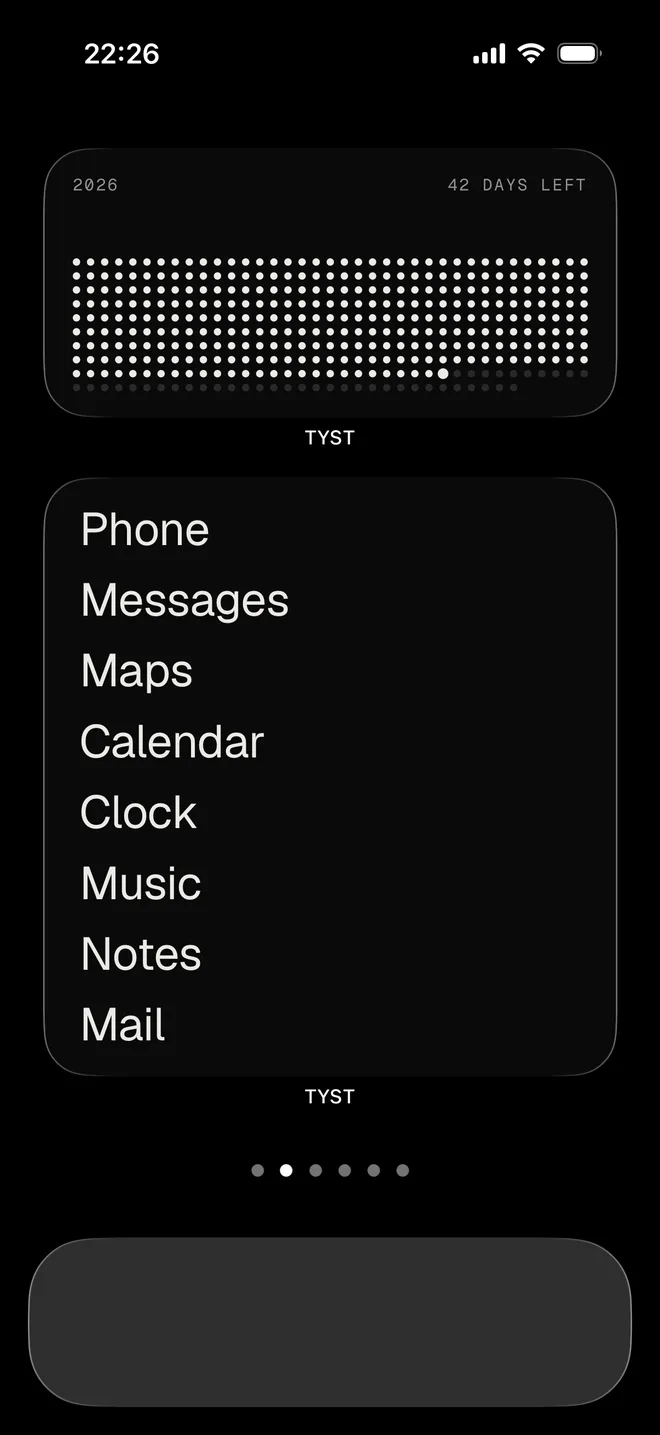
The one thing iOS can't do on its own is a Home Screen of plain words. That is what TYST does. Your apps appear as a list of names in medium and large widgets; you tap a name to open the app. A guided setup hides your other Home Screen pages, empties the Dock and adds the widgets, in about five minutes.
Here is what you can shape:
- Themes. Nine color themes: Night, Paper, OLED, Sand, Quartz, Brick, Lilac, Phosphor and Amber, each with a matching wallpaper and app icon.
- Fonts. Eight fonts: Grotesk, Mono, Serif, Typewriter, Pixel, Arcade, Terminal and Block.
- Word-list widgets. Your apps as words, in medium or large size.
- Profiles. One list for work and another for the evening, so you can match the Focus pages idea above.
- Quiet widgets around the list. Clock, LCD clock, Year in dots, Weather, Notes, To-do, "Did you today" for one daily habit, and a Focus timer with breaks, rounds and a Live Activity. There is a matching Lock Screen widget too.
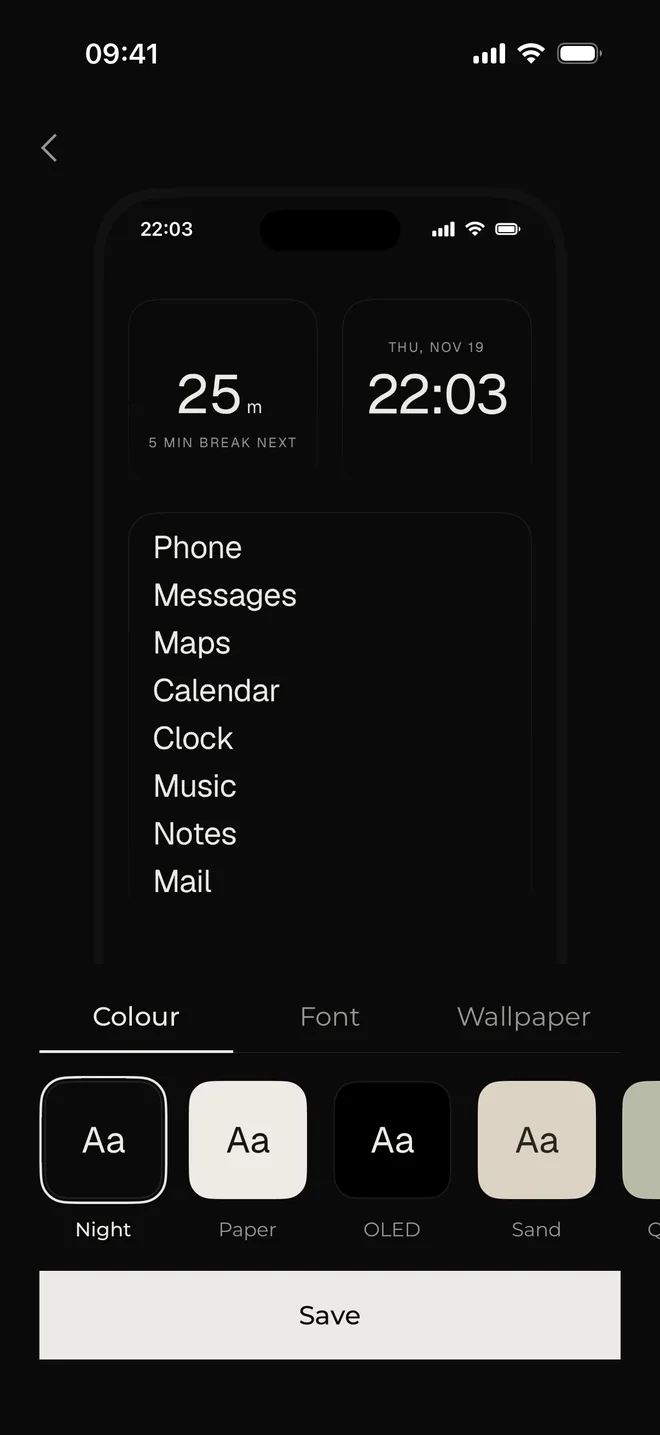
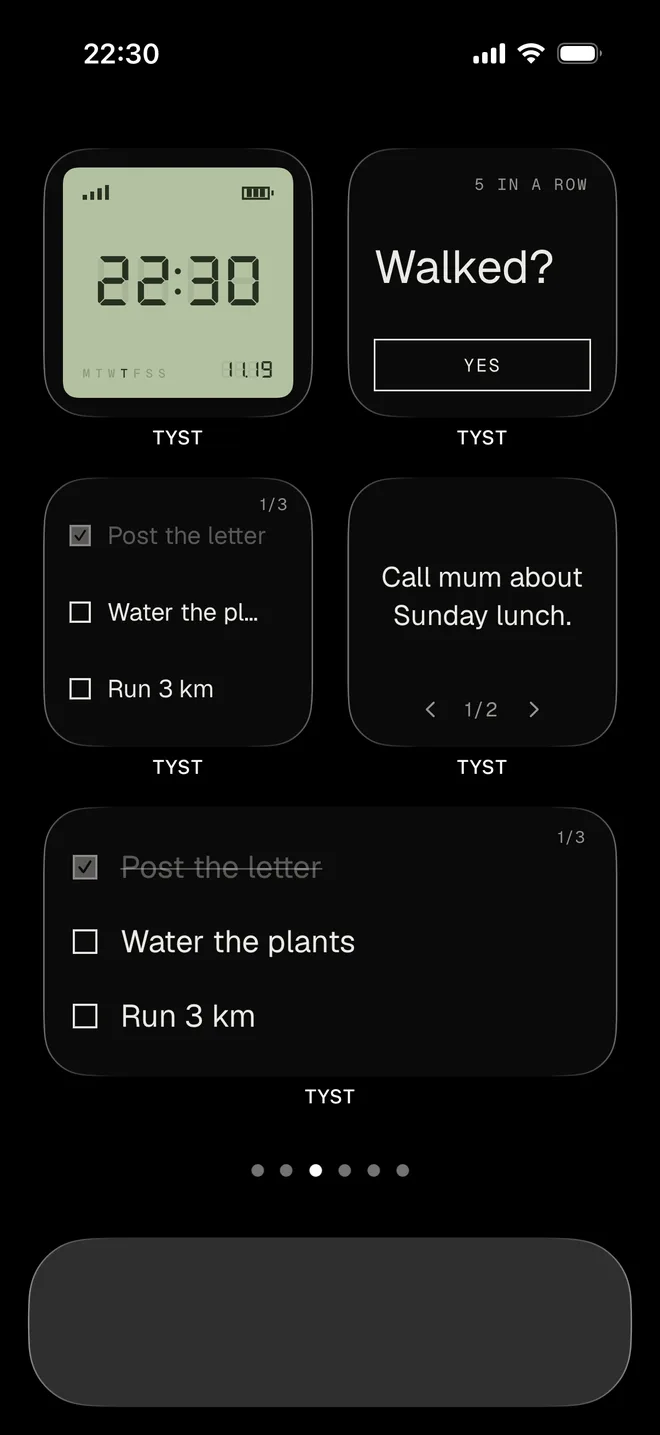
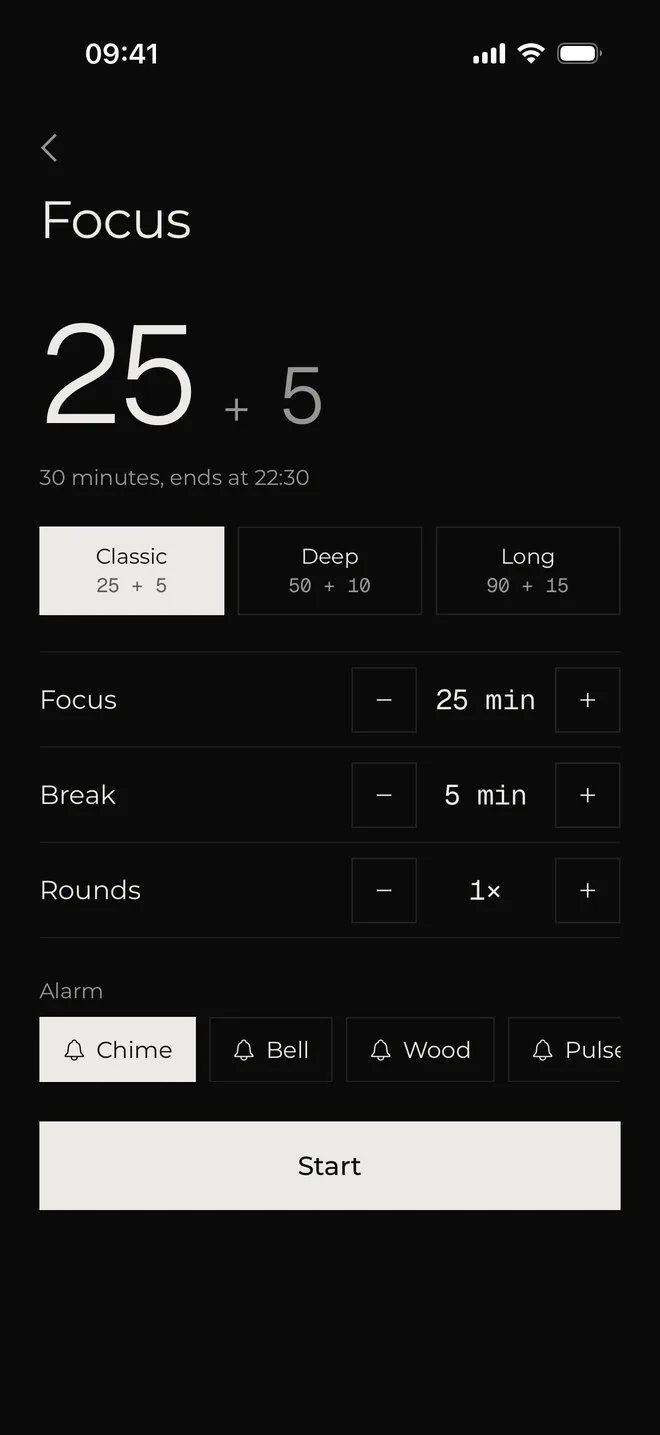
The free version includes the Night and Paper themes, the Grotesk font, the Home profile and all widgets. TYST Unlock is $4.99 once, with no subscription, and adds every theme, font and app icon, and more profiles.
See TYST on the App StoreWhat a minimalist Home Screen can't do
Be honest with yourself about this part. A calm Home Screen removes cues, but every app is still in App Library and Spotlight. TYST changes how the Home Screen looks; it doesn't block apps or read your Screen Time.
If one or two apps keep pulling you back anyway, add a lock.
NoMercy, our habit app, can lock chosen apps with Apple's Screen Time, and it pairs well with TYST. You'll find more options in the best app blockers for iPhone, and a fuller plan in how to turn your iPhone into a dumbphone. If you want to compare launchers first, see the best apps to turn your iPhone into a dumbphone.
Minimalist Home Screen checklist
- One visible Home Screen page; the rest hidden.
- New apps set to App Library Only.
- 4 to 8 apps you open on purpose, or a text list of them.
- Dock with four apps or none.
- Dark, Clear or gray-tinted icons, and a plain wallpaper.
- Badges off for everything except calls and messages.
- Optional: Focus pages for work and evening, grayscale at night.
Sources
- Find and use your apps in App Library on iPhone, Apple Support, iOS 27
- Customize apps and widgets on the iPhone Home Screen, Apple Support, iOS 27
- Add, edit, and remove widgets on iPhone, Apple Support, iOS 27
- Move apps and widgets on the iPhone Home Screen, Apple Support, iOS 27
- Set up a Focus on iPhone, Apple Support, iOS 27
- Create a custom iPhone Lock Screen, Apple Support, iOS 27
- Change notification settings on iPhone, Apple Support, iOS 27
- Use display and text size preferences on your iPhone, Apple Support
- A cross-over feasibility trial of smartphone grayscale mode in medical students, Hagerty et al., Frontiers in Digital Health, 2026
Questions
Can I delete the App Library on iPhone?
No. App Library is always one swipe past your last Home Screen page. You can make it work for you instead: hide extra pages so App Library is closer, and set new downloads to App Library Only.
Do hidden Home Screen pages delete my apps?
No. Hidden pages are kept as they are, and every app stays in App Library and Spotlight search. Tap the page dots in edit mode and add the checkmarks back to show them again.
How do I make iPhone app icons black and white?
Touch and hold the Home Screen, tap Edit, then Customize, and choose Dark or Tinted with the saturation slider turned down. For the whole screen in black and white, turn on Settings > Accessibility > Display & Text Size > Color Filters > Grayscale.
How do I remove app names from the Home Screen?
In the Customize panel, choose the large icon size. Apple's guide notes that app names disappear in large size.
Can I have a different Home Screen for work and evening?
Yes. Build one page for each, then go to Settings > Focus, tap a Focus such as Work, and choose its Home Screen page. That page shows while the Focus is on.
How do I go back to my old Home Screen?
Show your hidden pages again in edit mode. To start over completely, go to Settings > General > Transfer or Reset iPhone > Reset > Reset Home Screen Layout. That removes your folders and puts apps back in the default order.