 Souva
Full disclosure: Souva makes NoMercy, the first app on this list. Every other app here is the better choice for some people, and we say who. Prices and features come from each app's US App Store page, official site and help center, checked on 21 November 2026. They can change.
The best app blocker for iPhone depends on how strict you need it to be. NoMercy is best if you want blocking tied to daily habits. Opal is the most complete standalone blocker. one sec and ScreenZen add a pause instead of a wall, Jomo is the budget pick, Freedom also covers your computer, and Brick puts the off switch in a physical device.
What is the best app blocker for iPhone?
An app blocker for iPhone does one of two things. A hard blocker stops an app from opening, on a schedule or after a limit. A soft blocker lets you in after a pause that breaks the reflex.
- NoMercy: best if you want to build habits and block apps in one place.
- Opal: best all-round standalone blocker with schedules, limits and a no-cancel mode.
- one sec: best gentle pause before you open a tempting app.
- ScreenZen: best free app blocker, with no subscription at all.
- Jomo: best flexible rules for a low yearly price.
- Freedom: best if you also need to block sites on your Mac or PC.
- Brick: best if you can't trust yourself with an off button on the phone.
How do app blockers work on iPhone?
Apple doesn't let one app close another. Instead, it offers the Screen Time API, a set of tools called Family Controls, Managed Settings and Device Activity. Since iOS 16, these tools work for adults on their own iPhone, not only for parents managing a child's phone.
When you set up a blocker, iOS asks you to allow it, then confirm with Face ID, Touch ID or your passcode. You pick the apps to block from Apple's own picker, which hands the blocker private tokens instead of your app list.
When a blocked app opens, iOS covers it with a shield screen that the blocker designs. Opal, Jomo and NoMercy all say they work this way. one sec is a bit different: it uses a Shortcuts automation to show its pause when you open an app.
The limits Apple builds in
- You can always take the permission back. Apple adds two switches for each blocker: one under Settings › Screen Time, in the list of apps with Screen Time access, and one in the app's own page in Settings. Turn either off and the blocks stop.
- Deleting the app isn't blocked by default. Apple says the app deletion limits that apply to a child's phone don't apply when you manage yourself. Some blockers add their own strict mode on top.
So no app can make a block impossible to undo. A good blocker puts enough steps between you and the feed that the urge passes first.
What Screen Time does for free
Try Apple's free tools first. The names changed in iOS 27.
| What you want | iOS 27 | iOS 26 and earlier |
|---|---|---|
| A daily time limit | Settings › Screen Time › Time Allowances | Settings › Screen Time › App Limits › Add Limit |
| Apps off at set hours | Settings › Screen Time › Screen Time Schedule | Settings › Screen Time › Downtime |
| Apps that never lock | Settings › Screen Time › Always Allowed | Settings › Screen Time › Always Allowed |
The weak spot: Apple's iOS 26 guide says that by default, Screen Time limits can be ignored once reached. A real block during Downtime needs a Screen Time passcode, and you know your own passcode. That is the gap third-party blockers fill.
Our guide on how to reduce screen time on iPhone walks through the free settings step by step.
01
NoMercy Best for blocking apps while you build habits
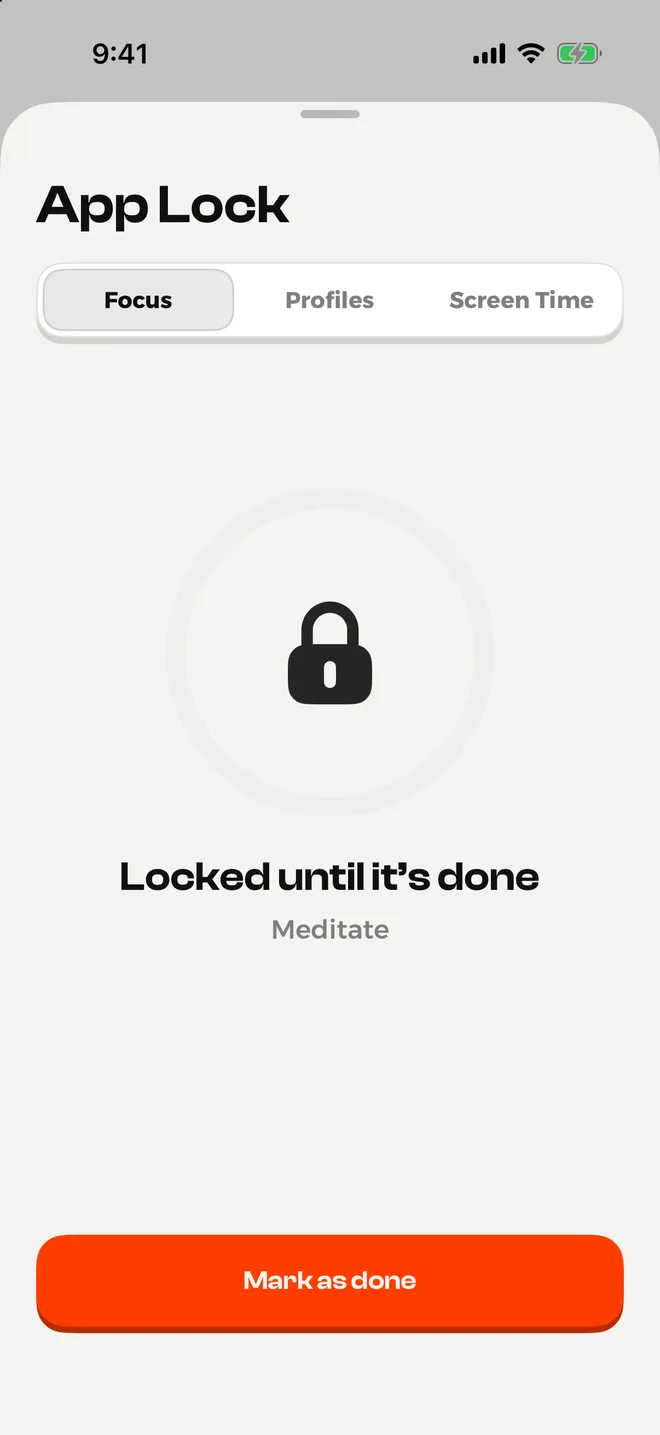
NoMercy is a habit app with a built-in app lock. You set a habit plan, and the lock keeps the apps that get in the way closed. Its "Until it's done" lock is the part most blockers don't have: your chosen apps stay locked until you finish a habit, like a workout or ten pages of a book.
Why it stands out
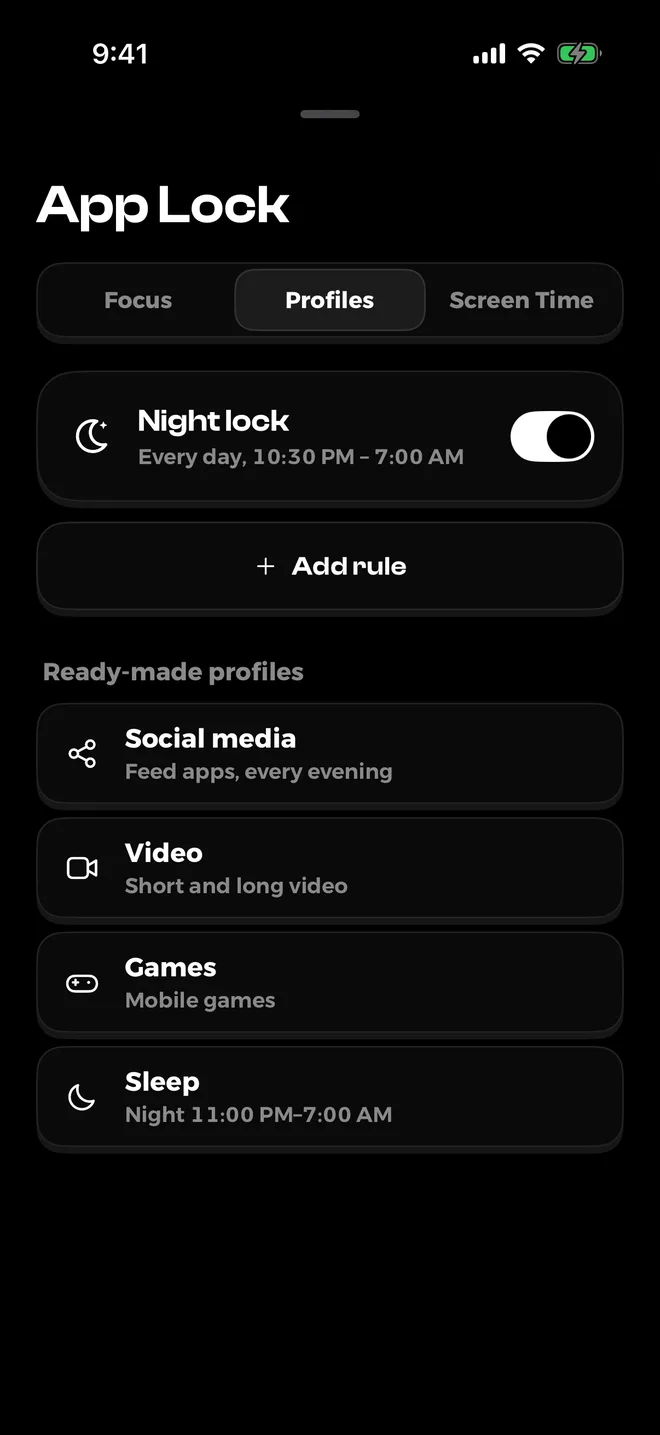
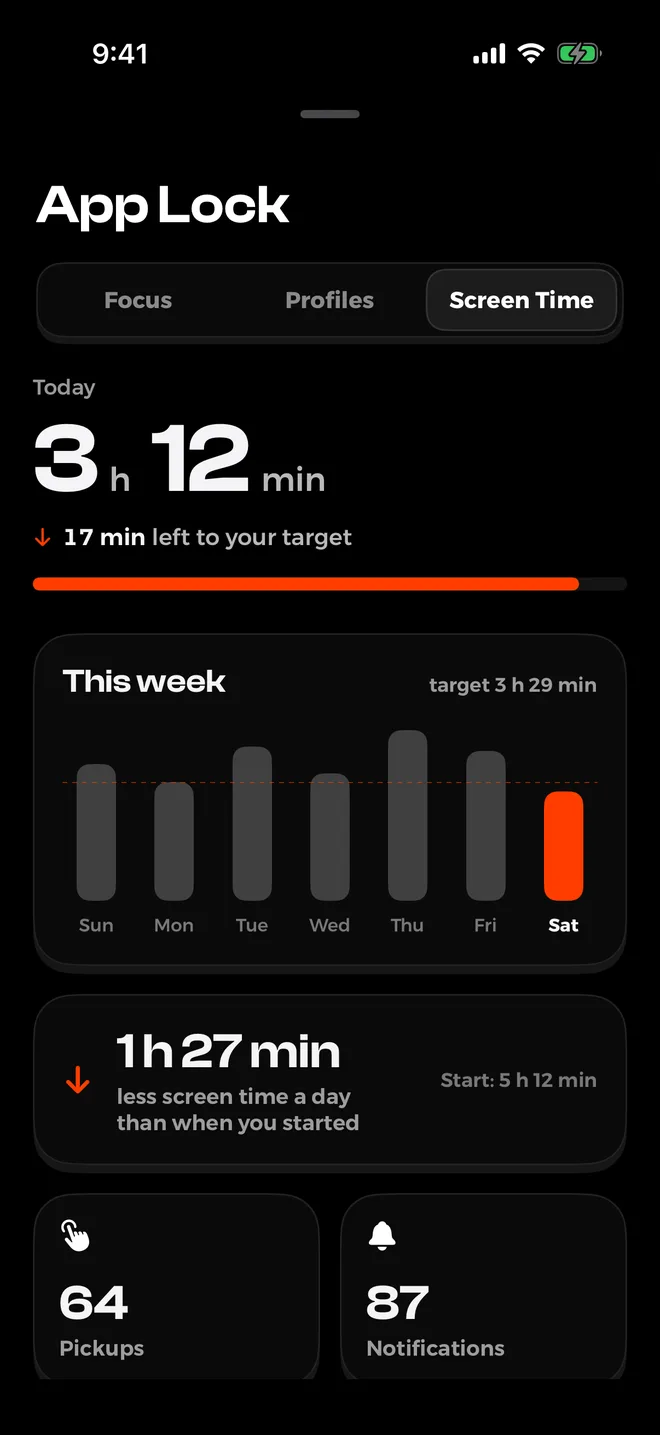
- Four ways to lock: Focus for as long as you want, Profiles that run at set hours, daily Screen Time limits, and Until it's done.
- Daily limits get a little tighter each week, so you cut back slowly instead of all at once.
- A night lock is free and set from your sleep and wake times.
- Premium has a strict mode that doesn't let you end a lock early.
- Habit plans of 14 to 66 days, forgiving streaks and a weekly recap of the screen time you won back.
- No account, no ads, no tracking. Data stays on your iPhone.
Keep in mind
- Plans, Screen Time limits and unlimited lock profiles need Premium. The free version includes 3 tries of the "Until it's done" lock.
- iPhone only, iOS 18.6 or later, and no sync between devices.
- It's a new app with few reviews so far.
- Like every Screen Time based blocker, you can remove its permission in Settings.
Price: free to download. Premium is $3.99 a week, $6.99 a month or $29.99 a year with a free trial, or $59.99 once for lifetime access.
Get NoMercy on the App Store
02
Opal Best all-round standalone blocker
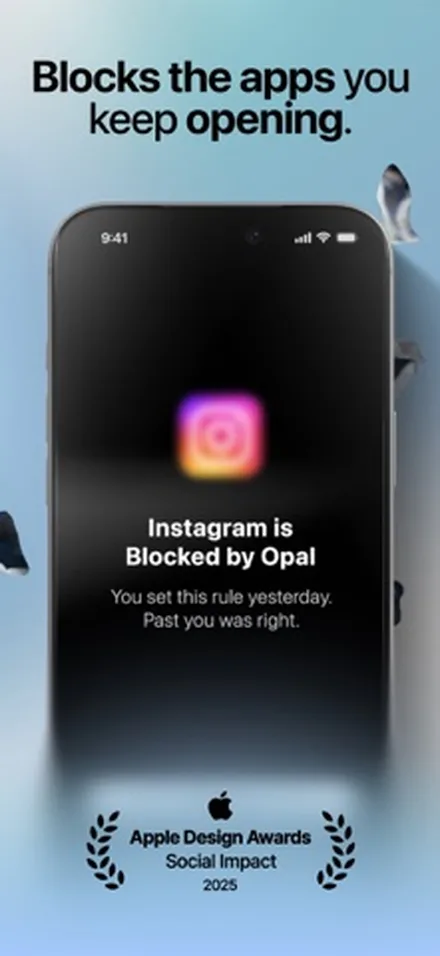
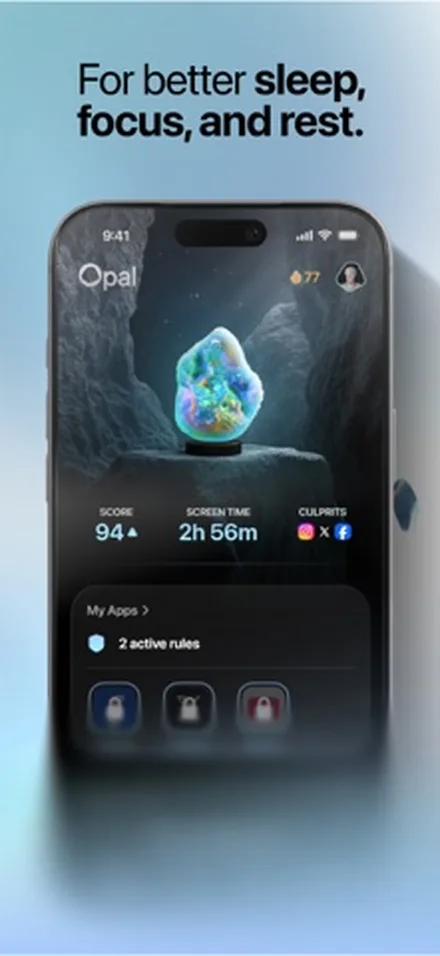
Opal is one of the best-known screen time apps on iPhone, and it's the most complete pure blocker here. It blocks apps and websites on a schedule, after a time limit or after a number of opens, and it turns your progress into a Focus Score.
Why it stands out
- Schedules, time limits, open limits, blocklists and allow lists for apps and websites.
- Choose how hard a block is. Deep Focus can't be cancelled or paused.
- Works with iPhone Focus modes and Shortcuts automations.
- Apps for iPhone, iPad, Mac and Android.
Keep in mind
- The most expensive subscription on this list.
- The free version allows three rules. The no-cancel mode, allow lists and unlimited rules need Pro.
- Needs iOS 18 or later.
Price: free to start. Opal Pro is $99.99 a year or $19.99 a month in the App Store; weekly plans are also listed. Opal's site also sells a $399 lifetime plan.
See Opal on the App StoreIf Opal's price is the sticking point, our separate guide to Opal alternatives goes deeper on cheaper options.
03
one sec Best gentle pause before you scroll
one sec doesn't block apps by default. When you open Instagram or TikTok, it shows a short breathing pause and asks if you still want to go in. That small delay is often enough to break the reflex, and it's the only app here backed by a peer-reviewed study of its own.
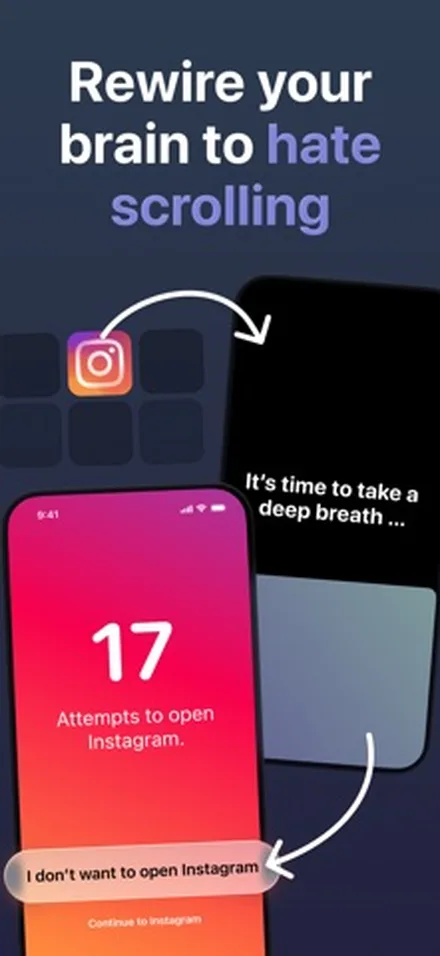
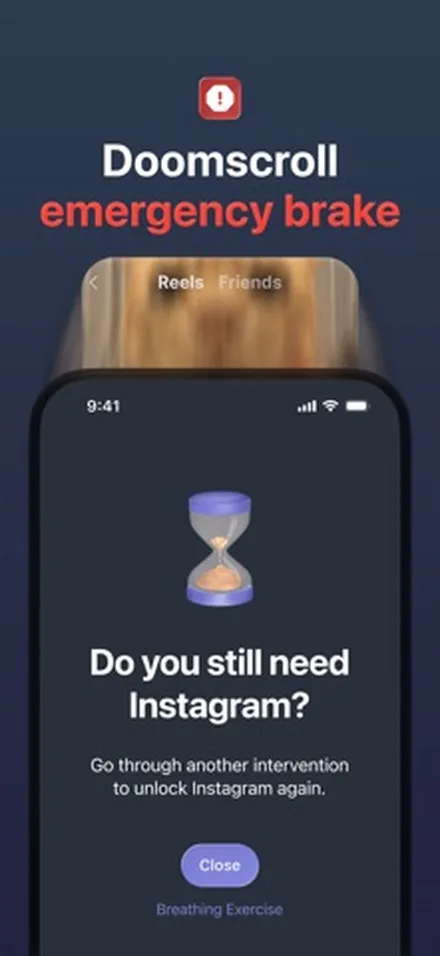
In a six-week field study of 280 people, one sec cut the number of times they actually opened the target apps by 57%. About 36% of the time, people closed the app again after the pause.
Grüning, Riedel and Lorenz-Spreen, PNAS, 2023 (Riedel is the developer of one sec)Why it stands out
- Friction instead of a wall, which many people find easier to live with long term.
- Re-Intervention: after a set time, such as five minutes, it pulls you out and asks again.
- Free for one app, plus a free Safari extension for websites.
- Runs on iOS 15 or later, with Android and browser versions too.
Keep in mind
- By design, you can tap through the pause. It won't hold you back on a bad day.
- Setup runs through Apple's Shortcuts app, so it takes a few extra steps.
- More than one app needs one sec pro.
Price: free for one app. one sec pro is $6.99 a month, $19.99 a year or $99.99 for lifetime; family plans are also available.
See one sec on the App Store
04
ScreenZen Best free app blocker
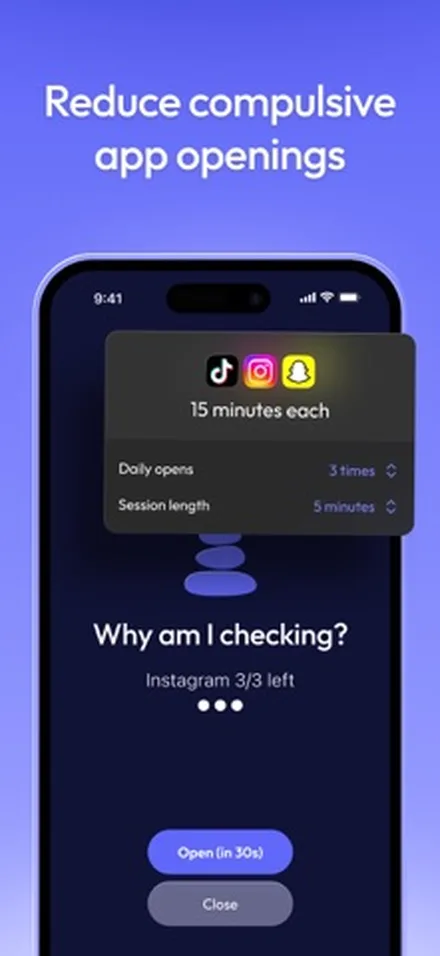
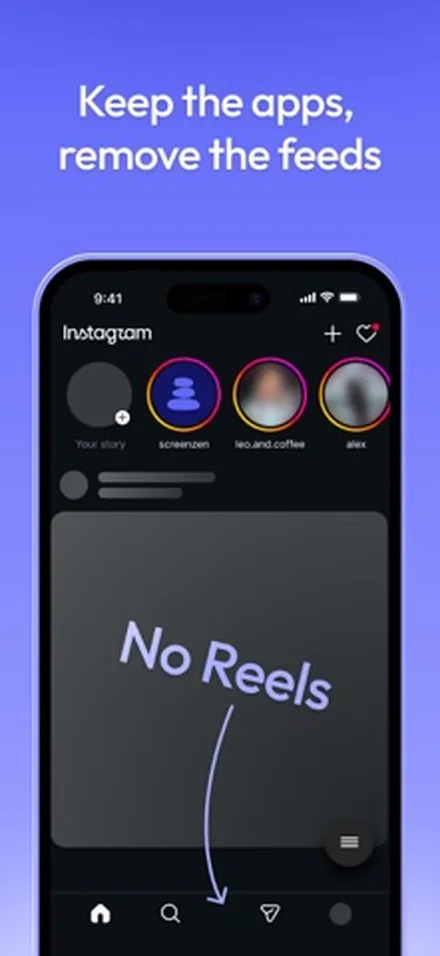
ScreenZen gives you most of what paid blockers do, for nothing. It's funded by optional donations, with no subscription. You can start with a short wait before an app opens and move up to strict blocks when you need them.
Why it stands out
- Completely free. Tips are optional.
- A delay before opening an app that can grow longer each time you open it.
- Limits on daily opens and session length, by app, day and time.
- Strict blocks for time ranges, after a number of opens or after a time limit, and a lock on its own settings.
- Apps for iOS, macOS, Windows and Android.
Keep in mind
- Lots of options, so setup takes some thought.
- Its latest update was in September 2026, a little less often than the others here.
- No habit tracking or plans.
Price: free. Optional tips from $5 to $40.
See ScreenZen on the App Store
05
Jomo Best flexible rules on a budget
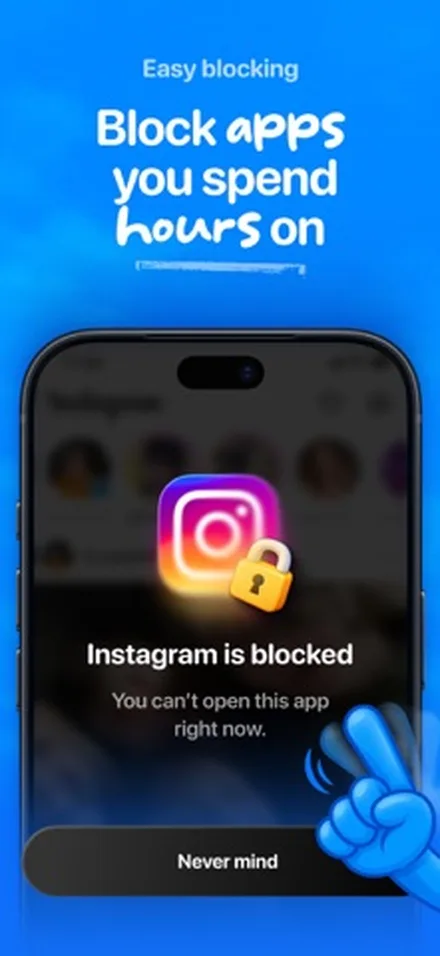
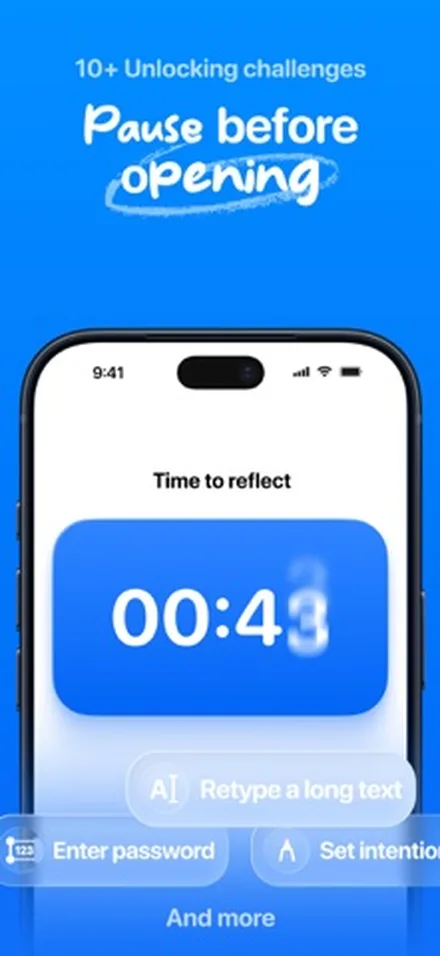
Jomo builds blocks from simple rules: at set times, after a usage limit, or until you do something, like walking 5,000 steps. You can be strict with yourself or gentle, and it stays cheaper than most paid blockers.
Why it stands out
- Block apps, websites in any browser, or whole categories like social media and games.
- Rules that end when you take an action, with Apple Health steps on the paid plan.
- Breaks with friction: wait a few seconds, write your reason or solve a challenge first.
- Strict Mode on the paid plan, and Jomo's site says messaging stays open, so you stay reachable.
- Works on iPhone, iPad and Mac.
Keep in mind
- The free version is small: one session, one action or limit, and one screen time budget.
- No habit tracking beyond its rules.
Price: free to start. Jomo Plus is $29.99 a year with a 3-day trial, $5.99 a month or $99.99 once. A student plan is $14.99 a year on Jomo's site.
See Jomo on the App Store
06
Freedom Best for blocking on every device
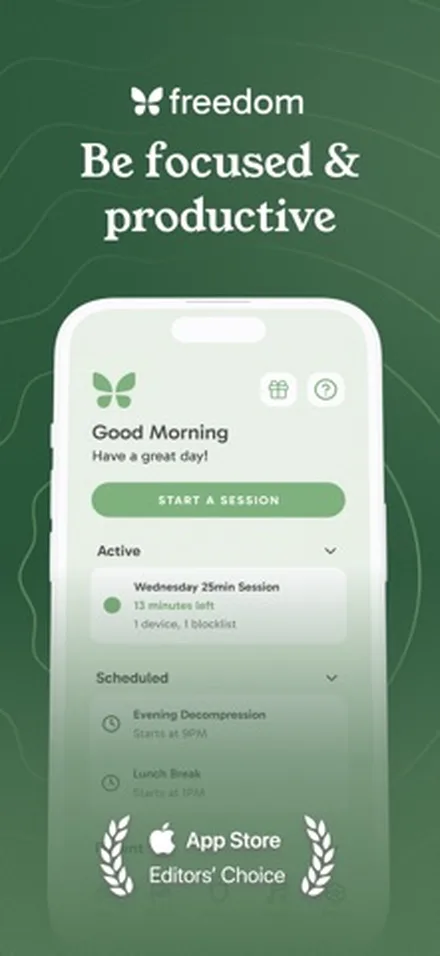
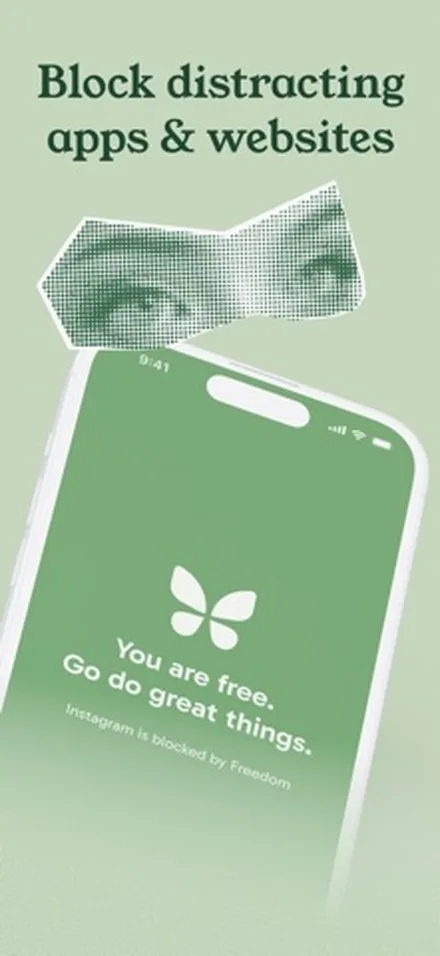
Freedom started as a computer blocker, and its iPhone app joins the same system. One session can block the same apps and sites on your phone, tablet and computer at once.
Why it stands out
- One account covers unlimited devices: iPhone, iPad, Android, Mac, Windows and Chromebook.
- Block chosen apps and sites, or the whole internet, without blocking calls and texts.
- Schedules and recurring sessions, plus Locked Mode so you can't quit a session.
- A free tier that already blocks apps, sites and the internet.
Keep in mind
- Locked Mode needs Premium.
- Website exceptions only work on Mac and Windows, not on iPhone.
- It's a session tool. It has no pause screens or habit features.
Price: free to start. In the App Store, Premium is $8.99 a month or $39.99 a year with a 7-day trial, or $199 once for Freedom Forever. Freedom's own site sometimes sells Forever for less.
See Freedom on the App Store
07
Brick Best physical off switch
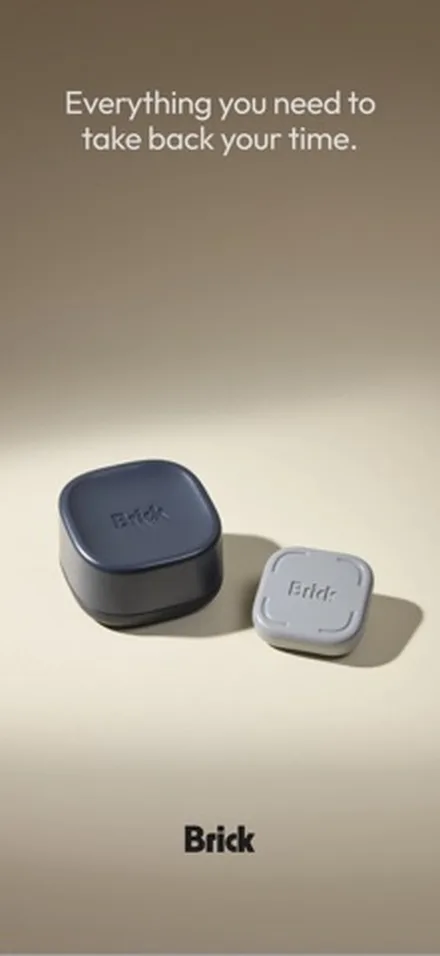
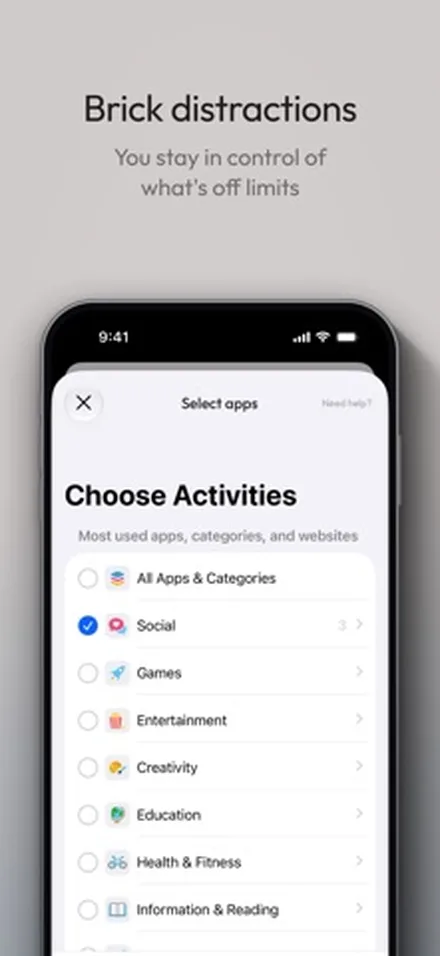
Brick is a small device plus a free app. You tap your iPhone on the Brick to block the apps you chose, then leave the Brick in another room. To unblock, you have to walk back and tap it again. Brick Night works on its own: it blocks apps when you walk into your bedroom.
Why it stands out
- The off switch isn't on the phone you're trying to put down.
- Modes and schedules for work, family time, sleep or the gym.
- Blocks any app except the phone dialer, plus chosen Safari websites.
- Strict Mode stops you from deleting the app or changing settings to unbrick.
- No subscription. The device includes full access to the app.
Keep in mind
- You pay up front: $59 for Brick or $129 for Brick Night, plus shipping on small orders.
- Only 5 emergency unbricks are included, so plan for real emergencies.
- Needs iOS 18 or later.
- Want the idea without the price? Foqos is a free app that blocks apps when you tap an NFC tag or scan a QR code you set up.
Price: the app is free; the Brick device is $59 and Brick Night is $129 on Brick's site.
See Brick on the App StoreiPhone app blockers compared
"Strict mode" means a block you can't end early from inside the app. Prices are US prices as of November 2026.
| App | Style | Free version | Paid price | Strict mode | Other devices |
|---|---|---|---|---|---|
| NoMercy | Hard block plus habits | Night lock, focus, 3 habits | $29.99 a year or $59.99 once | Yes, Premium | No |
| Opal | Hard block | 3 rules | $99.99 a year | Yes, Pro | Mac, Android |
| one sec | Pause | One app | $19.99 a year or $99.99 once | No | Android, browsers |
| ScreenZen | Pause and hard block | Everything | Free, tips optional | Yes | Mac, Windows, Android |
| Jomo | Rules and hard block | One session, one rule | $29.99 a year or $99.99 once | Yes, Plus | iPad, Mac |
| Freedom | Sessions | Basic blocking | $39.99 a year or $199 once | Yes, Premium | Unlimited |
| Brick | Physical device | App is free with device | $59 device, no subscription | Yes | No |
Which app blocker should you choose?
- You want to build better habits, not only block apps: NoMercy. The lock and the habit plan work together, and "Until it's done" turns a block into a reason to finish.
- You want one polished blocker and don't mind paying: Opal.
- Hard blocks make you rebel: one sec. Its pause is gentle and the research behind it is solid.
- You don't want to pay anything: ScreenZen.
- You want rules and strict mode at a low price: Jomo.
- Your laptop is as big a problem as your phone: Freedom.
- You turn off every app blocker you install: Brick, because the switch lives in another room.
You can also pair two: a gentle pause for reflex checks and a hard block at night.
Our guide on how to stop doomscrolling shows how to combine them.
Can you get around an app blocker on iPhone?
Yes, and it's better to know that up front. Every app on this list, ours included, runs on permission you give through Screen Time, and you can take it back in Settings. Brick and the strict modes add more steps, but none of them can lock you out of your own phone.
That isn't a reason to skip one. Most scrolling starts on autopilot, and a block catches it before you've made a choice.
These habits make any blocker stick:
- Block the few apps that matter. Two or three feeds, not every app. Fewer blocks mean fewer reasons to turn the whole thing off.
- Set blocks ahead of time. Schedules set in a calm moment beat midnight decisions.
- Use a strict mode for the hardest hours. Keep it for the evening or work blocks where you slip most.
- Make the phone less tempting too. A plain Home Screen helps; see our guide to a minimalist iPhone Home Screen.
Want blocking that grows with a daily routine? See how NoMercy works.
Sources
- What's new in Screen Time API, Apple WWDC22, 2022
- Meet the Screen Time API, Apple WWDC21, 2021
- Set Screen Time Schedules and Time Allowances on iPhone (iOS 27), Apple Support, 2026
- Set schedules with Screen Time on iPhone (iOS 26), Apple Support, 2025
- Directing smartphone use through the self-nudge app one sec, Grüning, Riedel and Lorenz-Spreen, PNAS, 2023
- Opal pricing, Opal, 2026
- Why pay for Opal, Opal Help Center, 2026
- ScreenZen official site, 2026
- Jomo pricing, Jomo, 2026
- Freedom pricing, Freedom, 2026
- Brick official site, Brick, 2026
- one sec official site, riedel.wtf apps, 2026
Questions
Do app blockers really work on iPhone?
Yes. Since iOS 16, Apple lets apps use its Screen Time tools to block other apps on your own iPhone, after you approve them with Face ID, Touch ID or your passcode. The catch is that you can also switch that access off in Settings, so a blocker supports your willpower rather than replacing it.
Can I block apps on iPhone without downloading an app?
Yes. Apple's Screen Time can limit apps for free. On iOS 27 use Settings > Screen Time > Time Allowances and Screen Time Schedule; on iOS 26 and earlier use App Limits and Downtime. By default you can ignore a limit once you reach it, so it works best as a reminder.
What is the best free app blocker for iPhone?
ScreenZen is completely free and funded by donations. one sec is free for one app. NoMercy, Opal, Jomo and Freedom have free versions with fewer features.
Which iPhone app blocker is hardest to get around?
Brick, because you need to tap a physical device to unblock, and it sits away from your phone. Among apps, look for a strict mode: NoMercy Premium, Opal Pro, Jomo Plus and Freedom Premium all have one that won't let you end a block early.
Can an iPhone app blocker block websites too?
Several can. Opal, Jomo, Freedom and ScreenZen block websites as well as apps, Brick blocks chosen Safari websites, and one sec has a free Safari extension.
Is there an app blocker without a subscription?
Yes. ScreenZen is free, Brick is a one-time device purchase from $59, and NoMercy, Jomo, one sec and Freedom all sell a one-time lifetime option next to their subscriptions.