 Souva
To turn your iPhone into a dumbphone, keep the hardware and change the setup: switch the screen to grayscale, allow notifications only from people, remove distracting apps from the Home Screen, hide extra pages, and put the apps you need on one page of plain text. Add app locks if you need them. It takes about 30 minutes and costs little or nothing.
You don't need a new phone to get the calm of a dumbphone. You can turn your iPhone into a dumbphone with settings Apple already gives you, and add a text-only Home Screen and app locks on top.
This guide goes step by step, with exact setting paths for iOS 27 as of November 2026, and it is honest about what this approach can't do. Looking for app picks instead? See the best apps to turn your iPhone into a dumbphone.
Why are people switching to dumbphones?
Because a phone that does everything also asks for everything.
Many people who say they want a dumbphone don't hate their iPhone. They hate how often they pick it up.
- Teens feel it too. In a Pew Research Center survey of 1,453 US teens, 72% said they often or sometimes feel peaceful when they don't have their smartphone, and 38% said they spend too much time on it. Their parents weren't far behind: 47% said the same about their own phone use.
- Young adults are curious. CivicScience found in 2025 that 39% of Gen Z adults who own a smartphone are at least somewhat likely to swap it for a flip phone, compared with 23% of all smartphone owners.
- Devices made for it are selling. The Light Phone III, a phone with calls, texts, maps, music and a camera but no social media, web or email, launched in 2025 at $799. Brick, a $59 block you tap your phone on to lock chosen apps, sells the same idea at a lower price.
Blocking mobile internet for two weeks, while calls and texts still worked, improved mental health, well-being or attention for 91% of participants.
Castelo and others, PNAS Nexus, 2025 (467 US and Canadian adults with iPhones)That study has a catch worth knowing: only about a quarter of people kept the block on as asked. Going cold turkey is hard. A dumbphone setup on the phone you already own is a gentler version of the same idea, and it is easier to keep.
Dumbphone device vs dumbphone setup on iPhone
Before you buy anything, compare the options. Prices are US prices checked on 21 November 2026, or the launch price where noted.
| Option | Cost | What you lose | What you keep |
|---|---|---|---|
| Light Phone III | $799 at launch (2025), plus a phone plan | Social apps, web, email, most banking and two-factor apps, your iPhone camera and apps | Calls, texts, maps, music, podcasts, notes, alarm, a camera |
| Basic flip phone | Varies by model and carrier | Almost every app, good maps, a good camera, group chats that rely on iMessage | Calls and texts, long battery life |
| Brick-style blocker | $59 for Brick, plus your iPhone | Access to the apps you choose until you tap the block again | Your whole iPhone; the look stays the same |
| Dumbphone setup on iPhone | Free with built-in settings; TYST is free or $4.99 once; NoMercy is optional | Color, badges, the endless grid of icons; it is easier to undo | Everything: camera, maps, banking, two-factor codes, iMessage, Apple Pay |
The trade is simple. A separate device gives you a hard wall but takes away tools you rely on. The iPhone setup keeps every tool but depends on you not undoing it.
For most people, the setup is the right first step. If it isn't enough after a month, a device is still there.
How do you turn your iPhone into a dumbphone?
Do these in order. Each one is small on its own; together they change how the phone feels in your hand.
- Write your essentials list. On paper, list the apps you truly need: usually Phone, Messages, Maps, Calendar, Camera, Music, your bank and a two-factor app. Aim for 8 to 12. Everything else is a guest.
- Turn on grayscale. Go to Settings › Accessibility › Display & Text Size › Color Filters, turn on Color Filters and choose Grayscale. Then go to Settings › Accessibility › Accessibility Shortcut and pick Color Filters, so a triple-click of the side button switches color back for photos.
- Cut notifications down to people. In Settings › Notifications, open each app that isn't a person or a must (like your bank) and turn off Allow Notifications. Turn off Badges for the rest. For apps you still want to hear from, use Settings › Notifications › Scheduled Summary to get them in a few batches a day.
- Clear the Home Screen. Touch and hold an app, tap Remove App, then Remove from Home Screen. It moves to App Library and still works. Delete the apps you don't need at all with Delete App instead.
- Hide extra pages. Touch and hold the wallpaper until icons jiggle, tap the dots at the bottom, and uncheck every page except one. Then go to Settings › Home Screen & App Library and choose App Library Only, so new downloads don't refill your pages.
- Hide the worst offenders. For an app you can't delete but don't want to see, touch and hold it, tap Require Face ID, then Hide and Require Face ID. It moves to a Hidden folder at the bottom of App Library. This works for App Store apps, not for Apple's built-in ones.
- Use Focus for different parts of the day. In Settings › Focus, pick a Focus like Work or Personal. Choose which people and apps may notify you, and choose the Home Screen page to show while it is on. Tap Add Schedule to turn it on by time or place.
- Make the last page text only. Replace the icons on your one remaining page with a plain list of words. The next section shows how with TYST.
Apple renamed some Screen Time tools in iOS 27. If you want app time limits as part of this setup, they are now in Settings › Screen Time › Time Allowances. On iOS 26 and earlier, Apple calls these App Limits, and Screen Time Schedule is called Downtime.
How do you make a text-only Home Screen?
Icons are built to be tapped. Bright colors, red badges and familiar logos pull your thumb before you have decided anything. A list of plain words doesn't do that. You read it, you choose, you tap.
Souva makes TYST for exactly this step. It turns your Home Screen into one quiet page of text: your apps appear as a list of words in medium and large widgets, and tapping a name opens the app.
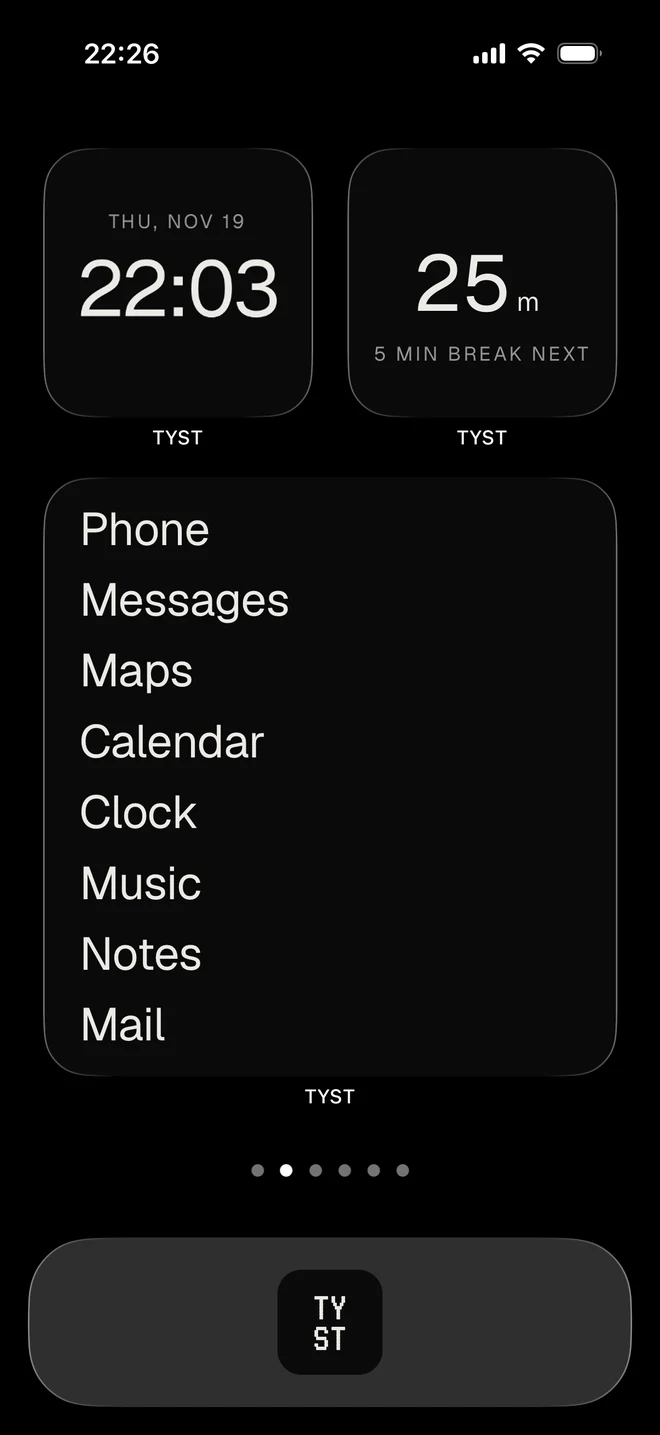
The setup takes about five minutes
TYST has a guided setup that walks you through the parts that are fiddly to do alone: hiding your other Home Screen pages, emptying the Dock and adding the widgets. If you did steps 4 and 5 above, you are already halfway there.
Profiles for work and evening
A dumbphone has one set of tools. Your life probably has two or three. TYST profiles let you keep one word list for work and another for the evening, so Slack and Mail don't have to sit on your screen at 9 p.m.
Widgets that replace a reason to open apps
Many pickups start with a quick look at the time, the weather or a to-do list, and end 20 minutes later somewhere else. TYST widgets put those answers on the Home Screen: a clock, an LCD clock, the year in dots, weather, a note, a to-do list and a "Did you today" widget for one small daily habit. There is also a matching Lock Screen widget.
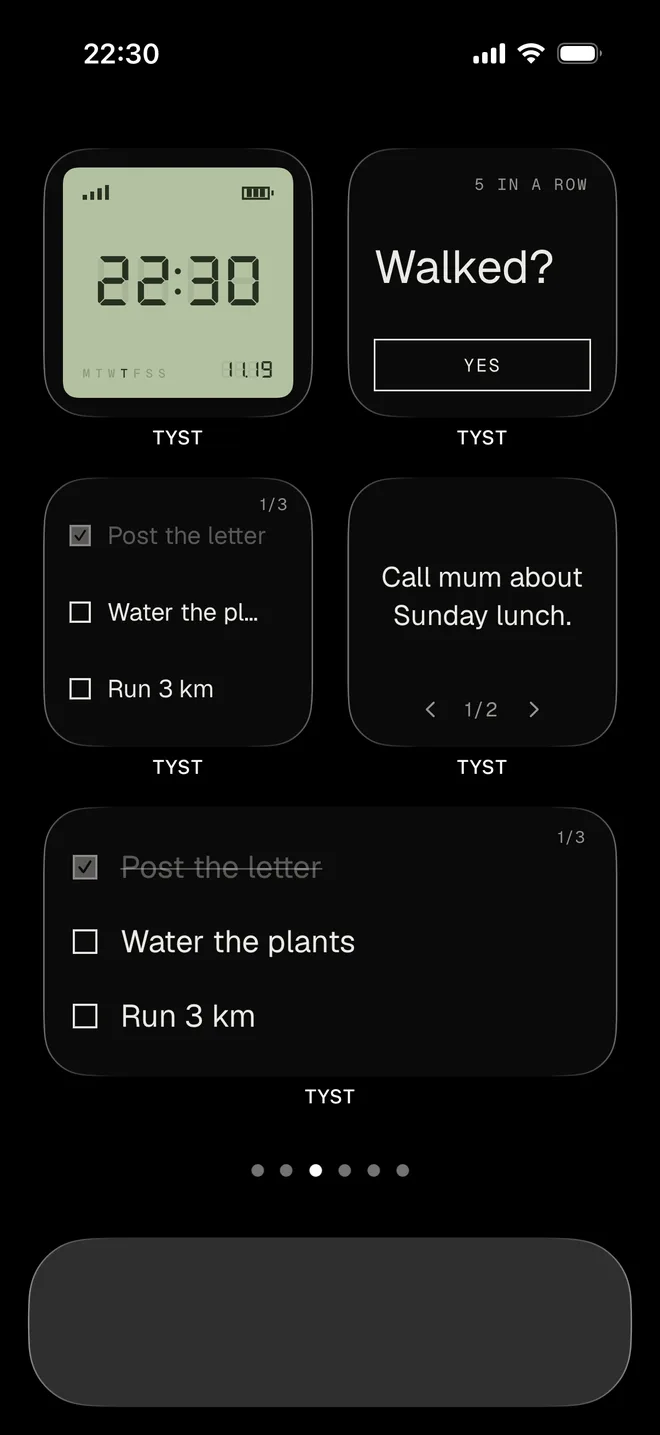
A focus timer
The Focus timer widget runs work and break rounds, with presets like 25 + 5 or 50 + 10, and shows a Live Activity while it runs. It is a simple way to put the phone face down for a set time.
Cost and limits
TYST is free with the Night and Paper themes, the Grotesk font, the Home profile and every widget. TYST Unlock is $4.99 once, with no subscription, and adds all nine themes, eight fonts, matching app icons and more profiles. It needs iOS 17 or later and works on iPhone only.
Be clear about what it doesn't do. TYST does not block apps and does not read your Screen Time data. Your apps still exist in App Library and Spotlight search.
It makes the phone calmer so you pick it up less; it doesn't stop you if you go looking.
For more Home Screen ideas, read our guide to a minimalist iPhone Home Screen.
Get TYST on the App StoreDo you need app locks too?
Maybe. If the quiet Home Screen is enough, stop here. If you catch yourself swiping to App Library or searching for an app by name, add a lock for those apps. That is the part a real dumbphone does for you, and the part a setup can't do on looks alone.
- Free, built in: Settings › Screen Time › Screen Time Schedule (iOS 27) lets you set time windows when only chosen app categories are available. On iOS 26 and earlier, use Downtime with Block at Downtime. Set a Screen Time passcode that someone else knows if you want it to hold.
- With NoMercy: Souva also makes NoMercy, which locks chosen apps using Apple's Screen Time. You can lock them for a focus session, on a schedule like a free night lock, with a daily limit that gets a little tighter each week, or until you finish a habit. Premium adds a strict mode that won't let you end a lock early.
TYST and NoMercy are made to work together: TYST makes the phone quiet, NoMercy locks what still pulls. NoMercy is free to start; Premium costs $3.99 a week, $6.99 a month, $29.99 a year with a free trial, or $59.99 once.
Like any Screen Time based blocker, its permission can be removed in Settings, so it backs up your decision rather than making it for you. Our roundup of app blockers for iPhone compares other options.
What to expect in the first week
The first days feel odd. Your thumb will reach for an icon that isn't there.
That reach is the habit you are breaking, and it fades.
| When | What usually happens | What to do |
|---|---|---|
| Day 1 to 2 | You unlock the phone and stare at the word list | Lock it again. Nothing to do is the point. |
| Day 3 to 4 | You start searching for apps by name | Delete or hide the ones you search for most, or add a lock |
| Day 5 to 7 | Something you need is missing | Add it to the list. The list should be short, not painful. |
Check your weekly report in Settings › Screen Time after seven days. If your time didn't drop, look at which apps you reached through search and lock those. For more ways to cut back, see our guide to reducing screen time on iPhone.
And if you want to undo it all: turn off Color Filters, tap the page dots in jiggle mode to show your pages again, and remove the widgets. Your apps never left.
Sources
- How Teens and Parents Approach Screen Time, Pew Research Center, 2024
- From Stereos to Flip Phones, Dumb Devices Are Cool Again, CivicScience, 2025
- Blocking mobile internet on smartphones improves sustained attention, mental health, and subjective well-being, Castelo and others, PNAS Nexus, 2025
- An Intervention Utilizing the Salience Principle to Reduce Pharmacy Students' Psychological Attraction to Smartphones (cites Holte and Ferraro, 2020, on grayscale), American Journal of Pharmaceutical Education, 2022
- Minimalist Light Phone 3 launches with a maximalist $799 price, 9to5Google, 2025
- Light introduces its latest minimalist phone, TechCrunch, 2024
- Brick, official website, 2026
- Change display colors on iPhone, Apple Support, 2026
- Find and use your apps in App Library on iPhone, Apple Support, 2026
- Lock or hide an app on iPhone, Apple Support, 2026
- Set up a Focus on iPhone, Apple Support, 2026
Questions
Can you turn an iPhone into a dumbphone?
Not fully, since every app stays installed or one download away. But you can make it feel like one: grayscale, notifications only from people, one Home Screen page of plain text, other pages hidden, and app locks for the hard cases. That covers most of what people want from a dumbphone.
Is there a dumbphone mode on iPhone?
There is no single switch. The closest built-in tools are Focus (which can show only chosen Home Screen pages), Color Filters for grayscale, and Screen Time schedules. Apps like TYST add a text-only Home Screen on top of that.
Does grayscale really reduce screen time?
In one study of college students, switching phones to grayscale cut screen time by about 38 minutes a day on average. It is a small study, but grayscale is free and easy to undo, so it is worth a try.
Should I buy a Light Phone or set up my iPhone instead?
Try the iPhone setup first. It is free or close to it, and you keep banking, two-factor codes, maps and your camera. If you still can't put the phone down after a month, a separate device like the Light Phone III, which launched at $799, is a bigger but stronger step.
Does TYST block apps?
No. TYST changes how your Home Screen looks: it turns it into one quiet page of text. To lock apps, use Screen Time or an app blocker like NoMercy. The two work well together.
How do I undo the dumbphone setup?
Turn off Color Filters, show your hidden Home Screen pages again by tapping the dots in jiggle mode, and remove the widgets. Apps you removed from the Home Screen are still in App Library, so nothing is lost.