 Souva
Full disclosure: Souva makes NoMercy and TYST, two iPhone apps mentioned near the end of this guide. The free iPhone settings come first, because for many people they are enough. Setting paths were checked against Apple's iPhone User Guide on 21 November 2026.
To reduce screen time on iPhone, open Settings › Screen Time and look at your daily average first. Then set a Screen Time Schedule for nights, Time Allowances for your worst apps, a Scheduled Summary for notifications and a Focus with a calm Home Screen. If you keep overriding your own limits, add a lock that holds.
Most guides on how to reduce screen time on iPhone still talk about Downtime and App Limits. In iOS 27, Apple renamed both: Downtime is now Screen Time Schedule and App Limits is now Time Allowances. iOS 26 and earlier still call them Downtime and App Limits. This guide gives the current names and paths, the older names in brackets, and an honest note on what each tool can't do.
How much time do people spend on their phones?
3.6 hours a day: the average time each mobile user spent in apps in 2025.
Sensor Tower, State of Mobile 2026That figure counts apps only, across iOS and Google Play. Other surveys point the same way. Pew Research Center found that 41% of U.S. adults say they are online "almost constantly," and 63% of adults aged 18 to 29 say the same (survey of 5,022 adults, 2025).
Teens are no different. In Pew's 2025 teen survey, about 4 in 10 U.S. teens said they are online almost constantly, up from 24% a decade ago. Common Sense Media tracked the phones of about 200 young people aged 11 to 17: over half got 237 or more notifications a day, and on average they checked their phones more than 100 times a day.
None of this means your number is "too high." It means a phone is built to be picked up, and cutting back takes a plan, not a promise.
Step one: read your Screen Time report
You can't cut what you don't measure. Go to Settings › Screen Time and tap Daily Average. Switch between Week and Day. Scroll down to see Pickups and Notifications: how often you pick up the phone and which apps ping you most.
If Screen Time is off, turn on App & Website Activity first (in iOS 27, from Settings › Screen Time › Manage Screen Time). If you use an iPad or Mac too, turn on Share Across Devices so your limits and reports cover all of them.
Write down three numbers: your daily average, your pickups and your top three apps. Those are what you will try to move. A Screen Time widget on your Home Screen keeps the number in view.
Built-in tools to reduce screen time on iPhone
Here is every free tool worth knowing, with what it does and where an app can add something.
| Tool | What it does | Where | Cost |
|---|---|---|---|
| Screen Time report | Shows daily and weekly use, pickups, notifications | Settings › Screen Time › Daily Average | Free |
| Screen Time Schedule (Downtime) | Sets which kinds of apps work at which times of day | Settings › Screen Time › Screen Time Schedule | Free |
| Time Allowances (App Limits) | Daily time budget, total and per category | Settings › Screen Time › Time Allowances | Free |
| Always Allowed | Apps and people that are never blocked | Settings › Screen Time › Always Allowed | Free |
| Communication Limits | Limits who can call or text you at set times | Settings › Screen Time › Communication Limits | Free |
| Focus | Silences notifications, shows a chosen Home Screen page | Settings › Focus | Free |
| Scheduled Summary | Delivers non-urgent notifications in batches | Settings › Notifications › Scheduled Summary | Free |
| Grayscale | Turns the screen black and white | Settings › Accessibility › Display & Text Size › Color Filters | Free |
| Screen Distance | Warns when the phone is too close to your face | Settings › Screen Time › Screen Distance (iOS 26) | Free |
| NoMercy | Locks that hold, limits that tighten weekly, habit plans | App Store | Free version; Premium from $3.99 a week or $59.99 once |
| TYST | Turns the Home Screen into a quiet page of text | App Store | Free; full version $4.99 once |
Screen Time Schedule (was Downtime)
Go to Settings › Screen Time › Screen Time Schedule and turn on Schedule. Tap Add Schedule, pick the days, then edit the time windows, such as work, dinner and evening.
For each window you choose which Time Allowance categories can be used. A weekday and a weekend schedule is a good start.
On iOS 26 and earlier this is Settings › Screen Time › Downtime, with Scheduled start and end times.
Time Allowances (was App Limits)
Go to Settings › Screen Time › Time Allowances. Drag the top slider for your daily total, then set a smaller allowance for a category like Social Media or Games. Apps work until they reach either the category's allowance or the daily total. If an app declares a matching website, the allowance covers the site too, so you can't just switch to Safari.
Turn on Match Screen Time Schedule if you only want those apps in certain windows. On iOS 26 the same idea is Settings › Screen Time › App Limits › Add Limit.
Always Allowed
Settings › Screen Time › Always Allowed. Add the people and apps you need even when everything else is paused: family, Phone, Maps, Health.
Keep this list short. Every app you add here is an app with no limit.
Communication Limits
Settings › Screen Time › Communication Limits. During screen time hours you can allow Contacts Only, Contacts & Groups with at Least One Contact, or Everyone. When your device is paused, choose Always Allowed or Everyone.
It needs Contacts turned on in iCloud. This is a useful way to make evenings quieter without missing family.
Focus
Settings › Focus. Pick a Focus such as Personal or Work, then choose which people and apps can notify you.
The underrated part: you can link a Focus to one Home Screen page. Make a page with only your useful apps, and your feeds disappear while the Focus is on. Tap Add Schedule to turn it on at a set time or place.
A Focus silences. It does not block. You can still open any app.
Notification summary
Settings › Notifications › Scheduled Summary. Turn it on, set one to three times a day, and choose the apps to include. Notifications from those apps then arrive in a batch instead of one by one. Fewer pings means fewer pickups.
(Summarize Notifications, the Apple Intelligence feature, only shortens notifications; it doesn't reduce them.)
Grayscale
Settings › Accessibility › Display & Text Size › Color Filters, turn on Color Filters, choose Grayscale. Then add it to Settings › Accessibility › Accessibility Shortcut, so a triple-click of the side button switches it on and off.
This one has evidence behind it. In a 2023 study of 84 people, one week of grayscale cut daily screen time by about 20 minutes. Unlocks did not drop, though.
Color makes apps more fun; it is not what makes you reach for the phone.
Screen Distance
On iOS 26 it is at Settings › Screen Time › Screen Distance. It uses the Face ID camera to warn you when you hold the phone closer than 12 inches for a long time. It is for your eyes, not your hours: it won't reduce screen time. Apple's iOS 27 guide no longer has a page on it for adults, so check whether it appears in your Screen Time settings.
Does Screen Time actually work?
It works as a mirror and a speed bump. It is weak as a lock when you set it for yourself.
- You can change your own limits. Apple's own guide shows how to delete a Time Allowance in a few taps. On iOS 26, Apple says limits "can be ignored once reached" by default.
- The passcode is yours. A Screen Time passcode (Settings › Screen Time › Passcode & Management › Lock Screen Time Settings) slows you down, but you know it. Having a partner or friend set it works better.
- Limits stay the same. A limit you set in January is the same limit in March. It does not ask more of you as you get better.
- No reward. The report shows your use, not how much time you saved compared with where you started.
If the free tools work for you, stop here. If you keep tapping past your own limits, read on.
Where NoMercy helps
NoMercy is our app. It joins habit plans and an app lock, built on Apple's Screen Time. It adds three things the settings above don't have.
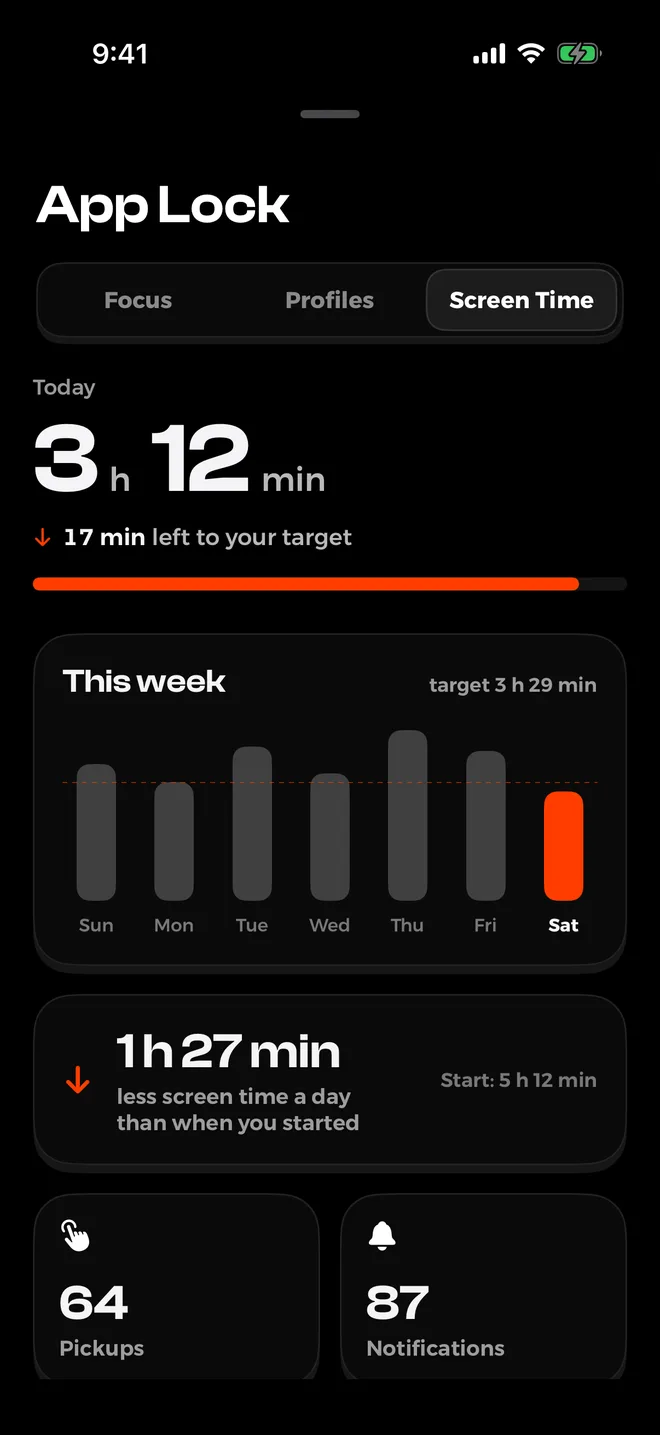
- Locks that hold. Lock chosen apps for a focus session, on a schedule (a night lock is free and set from your sleep and wake times), or until you finish a habit. Premium adds a strict mode that doesn't let you end a lock early.
- Limits that tighten each week. The Screen Time lock sets daily limits for apps, and the limit gets a little tighter every week. You don't have to make a big cut on day one.
- Time won back. A weekly recap shows how much screen time you won back compared with when you started. That is the number worth watching.
Honest limits: plans, Screen Time limits and the full lock need Premium ($3.99 a week, $6.99 a month, $29.99 a year with a free trial, or $59.99 once). It needs iOS 18.6 or later.
And like every Screen Time based blocker, you can remove its Screen Time permission in Settings, so it supports your willpower rather than replacing it. No account, no ads, and your data stays on your phone.
For a side-by-side look at other blockers, see the best app blockers for iPhone and Opal alternatives.
See NoMercy on the App StoreWhere TYST helps: a calmer Home Screen
A lot of screen time starts with a glance. You unlock to check the time and a red badge pulls you in.
TYST, our other app, changes what you see: your Home Screen becomes one quiet page of text, with apps as plain words in a widget. No icons, no badges, no colors fighting for you.
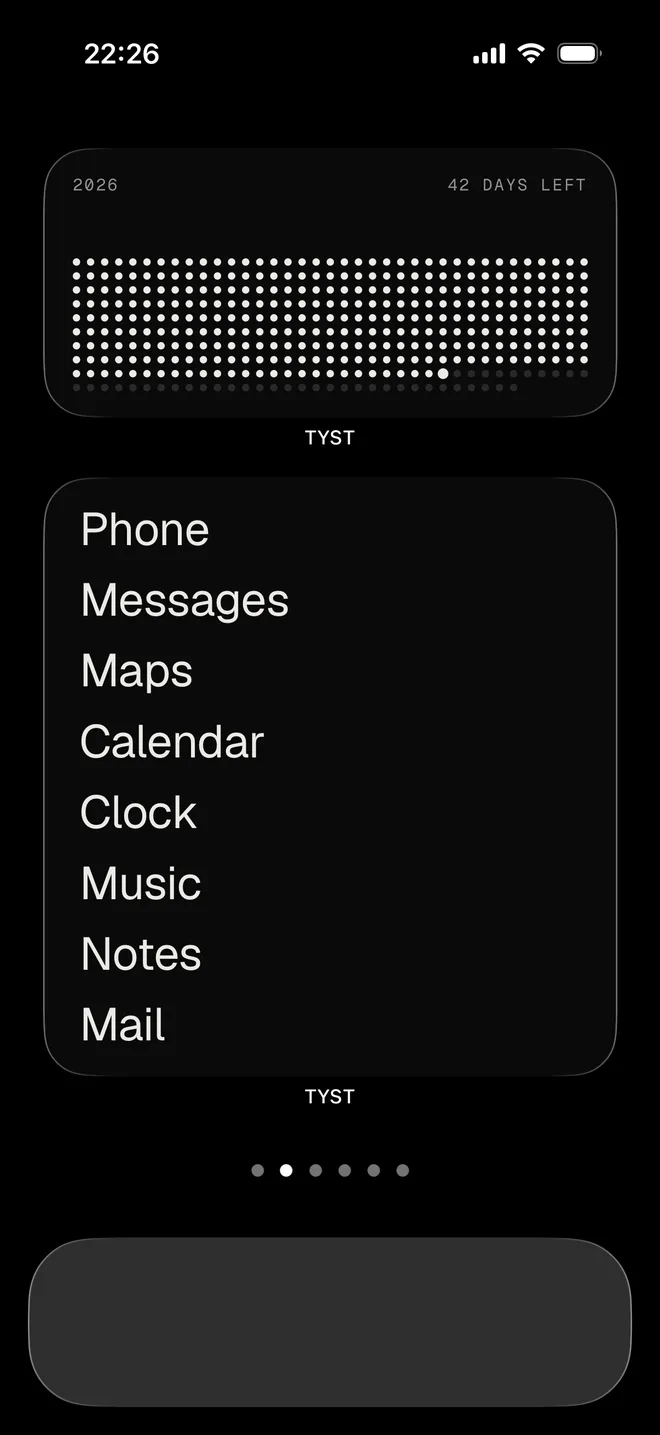
TYST does not block apps and does not read Screen Time data. Your apps are still in the App Library and Spotlight. It just makes the phone calmer, so you pick it up less.
It is free with two themes and all widgets; the full version is $4.99 once. It pairs well with NoMercy, which does the locking. More ideas in how to make a minimalist iPhone Home Screen.
See TYST on the App StoreA 7-day plan to cut your screen time
- Day 1: Measure. Write down your daily average, pickups and top three apps from Settings › Screen Time.
- Day 2: Cut the pings. Turn off notifications for every app that isn't a person. Put the rest in a Scheduled Summary.
- Day 3: Protect the night. Set a Screen Time Schedule (or Downtime) or a night lock from an hour before bed until after breakfast. Charge the phone outside the bedroom.
- Day 4: Budget the feeds. Give Social Media and video a Time Allowance about 15 minutes below your current average.
- Day 5: Make it dull. Set up grayscale on the triple-click and move feed apps off the first Home Screen page.
- Day 6: Build a Focus. Link a Focus to a Home Screen page with only tools. Schedule it for work hours.
- Day 7: Check and tighten. Compare with Day 1. Cut each allowance a little more next week. If you ignored limits more than twice, add a lock that holds.
Want the habits that replace the scrolling? See how to stop doomscrolling, a morning routine without your phone and how long it takes to form a habit.
Sources
- Set up Screen Time for yourself on iPhone, Apple Support (iOS 27), 2026
- Set Screen Time Schedules and Time Allowances on iPhone, Apple Support (iOS 27), 2026
- Set schedules with Screen Time on iPhone, Apple Support (iOS 26)
- Choose who you can communicate with at certain times, Apple Support (iOS 27), 2026
- Create, change, or remove a Screen Time passcode, Apple Support (iOS 27), 2026
- Help protect your vision health with Screen Distance, Apple Support (iOS 26)
- Set up a Focus on iPhone, Apple Support (iOS 27), 2026
- Change notification settings on iPhone, Apple Support (iOS 27), 2026
- Change display colors on iPhone, Apple Support, 2026
- State of Mobile 2026, Sensor Tower, 2026
- Internet use, smartphone ownership and digital divides in the U.S., Pew Research Center, 2026
- Teens, Social Media and AI Chatbots 2025, Pew Research Center, 2025
- Constant Companion: teens are bombarded with hundreds of notifications a day, Common Sense Media, 2023
- Dekker and Baumgartner, Is life brighter when your phone is not? Mobile Media & Communication, 2023
Questions
Where did Downtime and App Limits go in iOS 27?
Apple renamed them. Downtime is now Screen Time Schedule and App Limits are now Time Allowances. Both live in Settings > Screen Time. On iOS 26 and earlier you still see the old names.
What is a good daily screen time for an adult?
There is no official number for adults. Start from your own weekly average in Settings > Screen Time and aim to cut it step by step, for example by 15 to 30 minutes a day each week, with the biggest cuts in the apps you regret.
Can I stop myself from ignoring Screen Time limits?
Partly. A Screen Time passcode stops quick changes, but you know your own code. Ask someone you trust to set it, or use an app with a lock you can't end early, such as NoMercy's strict mode.
Does grayscale really reduce screen time?
In a 2023 study of 84 people, one week of grayscale cut daily screen time by about 20 minutes. The number of phone unlocks did not change, so it makes the phone less fun rather than breaking the checking habit.
Do I need an app to reduce screen time on iPhone?
No. The built-in tools are free and enough for many people. An app helps if you keep ignoring limits, want limits that tighten over time or want to see how much time you won back.